
Commenting on discussions and content
Members can discuss and engage directly in community discussions and your members only content.
How Commenting Is Structured
Comments are controlled at two levels:
- Content spaces: A content space must have comments enabled before any content inside that space can use comments.
- Posts & Content: Each new post or piece of content inside a space can independently have comments turned on or off.
If comments are disabled at the space level, comments will not be available on any content within that space, even if enabled on the content itself.
Enabling Comments
Step 1: Enable Comments in a Content space
- In your dashboard, go to Spaces > Select a Content space.
- Click the Edit (pencil) icon.
- Enable Comments for that space.
This unlocks comment functionality for all content within the space.
Step 2: Enable Comments on Posts & Individual Content
- In your dashboard, go to Spaces > Select a space.
- Select the Post or Content.
- Click the Edit (pencil) icon.
- Toggle Comments on or off.
This allows you to choose exactly where discussions are allowed.
Member Commenting Requirements
Before a member can post a comment, they must complete the following steps:
- Agree to the MemberSpace Community Guidelines to set expectations and support healthy discussions.
- (Optional) Set a display name.
- If your member does not have a payment method on file, they will be required to add one (no charge) for identity verification.
Display Names
Members can choose a display name for comments.
- The default display name is the member's first name and last initial (eg: Michelle B.).
- This display name can be different from their account profile name.
- The display name is what other members will see in the comments.
This allows members to participate using a name that feels appropriate for the community.
Interacting With Comments
Site owners, admins, and members can comment on enabled content and react with emojis to content and other members' comments. You can use @mentions to directly speak to or notify another member within a comment.
Comments also support threaded replies, allowing members to respond directly to a specific comment and keep conversations organized. This makes it easier to follow discussions, ask follow-up questions, and collaborate without cluttering the main comment feed.
Contribution Status
Each member profile is set to Allowed by default, which enables them to comment and participate in the community.
If you need to prevent a member from commenting, you can change their contribution status to Blocked.
How to Update a Member’s Contribution Status
- In your dashboard, go to Members
- Search for the member and click View Member Details
- Click Change next to Can write in community
- Select Allowed or Blocked
- Click Update to save your changes
Member notifications and following
Members receive notifications in their What's New feed when new comments are added by following a post or content. Members automatically follow when they post a comment. They can also choose to manually follow a piece of content without posting a comment.
If you want to make sure members are notified that a new comment exists you can use the Notify members options.
Activity Feed and Admin Alerts
Site owners and admins can monitor new comments, replies, reactions, and other member activity from the Activity Feed in their MemberSpace dashboard.
MemberSpace also sends admins a daily email summarizing recent member activity. This admin email is separate from the Daily Email Summary sent to members about new content and discussions.
Disable the Daily Admin Activity Updates
If you do not want to receive the daily admin email, open your Activity Feed settings and turn off the daily email option.
- Click the alert bell icon in the top left
- Click the 3 dots menu to manage notifications
-
Disable the Get Email Summaries toggle
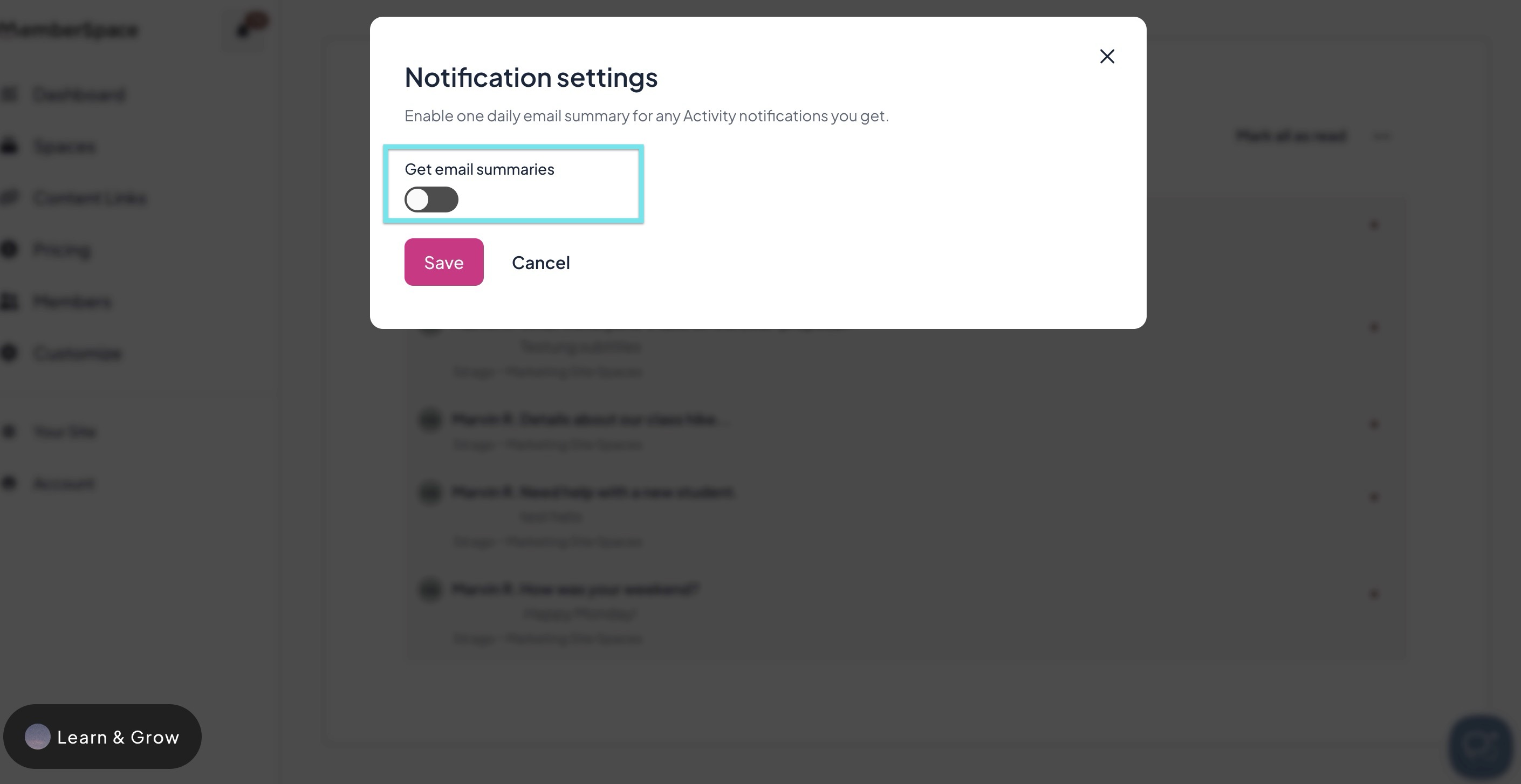
Disabling this email does not remove activity from your dashboard or affect the Daily Email Summary and other notifications sent to members.
Reporting and Moderation
All comments are automatically approved and are posted immediately. Other members can report or flag any comment and share a message to the site owner and admin. Afterwards the site owner and admins are notified through the Activity Feed and via email.
Automatic Blocking
Comments are automatically blocked after two reports. If the site owner/admin unblocks a comment, automatic blocking will resume after repeated reports using an exponential backoff system.
- 4 reports → blocked again
- 8 reports → blocked again
- 16 reports, and so on
Each time the threshold increases exponentially.
Moderation Controls
In order to have full control over moderation decisions, site owners/admins can:
- Unblock comments that were automatically blocked.
- Manually block comments at any time.
- Delete comments at any time.
- Update a member's contribution status